
Close Menu

    Subscribe to Updates

    Get the latest creative news from FooBar about art, design and business.

    What's Hot

    Are You Getting Traffic from China and Singapore? Here’s How to Block It in Cloudflare

    February 17, 2026

    Best Models for Coding in 2025

    June 6, 2025

    How to Show Logo Only, Not Site Title in Header in Astra Theme

    April 9, 2025
    Facebook X (Twitter) Instagram
    digiguy.net
    • Homepage
    • About me
    • Get In Touch
    • Privacy Policy
    digiguy.net
    Home»Guides»How to Check Which Elementor Pro Elements Are Used on Your Site
    Guides

    How to Check Which Elementor Pro Elements Are Used on Your Site

    WebteamBy WebteamJanuary 15, 202501462 Mins Read
    Share Facebook Twitter Pinterest Copy Link LinkedIn Tumblr Email Telegram WhatsApp
    How to Check Which Elementor Pro Elements Are Used on Your Site
    Share
    Facebook Twitter LinkedIn Pinterest Email Copy Link

    If you’re looking to check which Elementor elements are being used on your website, including both free and Pro features, you’re in the right place. Whether you’re using the free version of Elementor or have upgraded to Elementor Pro, it’s important to know which elements and widgets are active on your site. This not only helps with optimizing your website’s performance but also allows you to manage the elements from Elementor add-ons or third-party plugins. In this guide, I’ll walk you through a simple process that lets you identify all the Elementor components on your site, including those from the Pro version and any installed add-ons.

    How do I know if a site is using Elementor Pro components

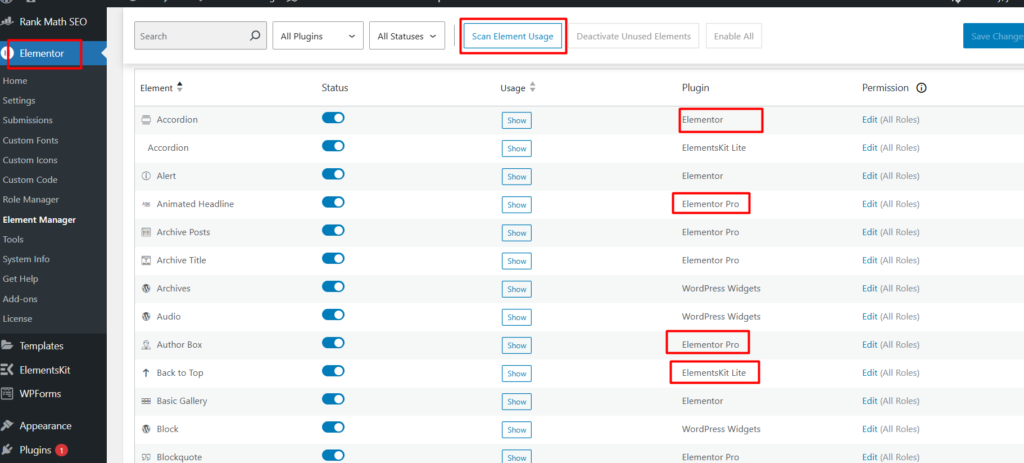
    In a recent update, Elementor added a useful feature that allows you to easily see which elements are in use on your website. Follow these steps:

    1. Go to your WordPress dashboard.
    2. In the left menu, click on Elementor.
    3. Then, select Element Manager.
    4. Click on the Scan Element Usage button.
    How to Check Which Elementor Pro Elements Are Used on Your Site

    Once you’ve done that, you’ll see a list of all the elements/widgets currently being used on your site. This list will show if you’re using any Elementor Pro elements or widgets, as well as elements from other plugins installed on your site.

    If you notice any elements that you’re not using, you can deactivate them by clicking the Deactivate Unused Element button. This can help optimize your site by reducing unnecessary elements.

    By following these steps, you can easily identify Elementor Pro components and ensure your site is running smoothly and efficiently!

    Share. Facebook Twitter Pinterest LinkedIn Tumblr Email Copy Link

    Related Posts

    Are You Getting Traffic from China and Singapore? Here’s How to Block It in Cloudflare

    February 17, 2026

    Best Models for Coding in 2025

    June 6, 2025

    How to Show Logo Only, Not Site Title in Header in Astra Theme

    April 9, 2025
    Add A Comment
    Leave A Reply Cancel Reply

    Top Posts

    TeraBox 1TB Free Cloud Storage Guide: Everything You Need to Know

    December 7, 2024305 Views

    Payoneer Virtual Card Fee: Is It Free or Are There Annual Charges?

    December 11, 2024174 Views

    How I Solved the Dell Laptop Flickering Issue with Intel UHD 630 Graphics [Story and Guide]

    December 19, 2024164 Views

    Subscribe to Updates

    Get the latest tech news from FooBar about tech, design and biz.

    © 2026 digiguy.net. Designed by Digital Guy.
    • Home

    Type above and press Enter to search. Press Esc to cancel.